


Table of Contents
VoteBuilder, the NGP VAN voter database used by Democratic campaigns and committees, gives campaign teams the voter data they need: lists, voter records, survey responses, contact history, targeting filters, and turnout information.
But when it is time to phonebank with VoteBuilder, many teams run into the same problem: voter data is ready, but large-scale calling still takes too much manual work.
That is where CallHub helps.
By connecting CallHub with VoteBuilder, campaigns can import saved voter lists, assign callers, use scripts, choose dialers, record survey responses, and sync outcomes back to VoteBuilder. Your team keeps VoteBuilder as the voter data source while using CallHub to run faster, more organized phone banking campaigns.
This guide walks through how to use VoteBuilder with CallHub, when to use CallHub instead of OpenVPB, how the integration works, which dialer to choose, and how to troubleshoot common setup issues.
Why phonebank with VoteBuilder?
VoteBuilder gives campaigns the organizing backbone. It helps teams build targeted voter lists, view voter profiles, check past contact history, and segment voters based on campaign needs.
But VoteBuilder alone may not be enough when your campaign needs to call thousands of voters in a short window.
A phone banking setup that connects VoteBuilder and CallHub can help you:
- Import saved VoteBuilder lists into CallHub.
- Assign voters to volunteers without manual list splitting.
- Show scripts and voter information during calls.
- Use power, predictive, preview, or manual dialing depending on the campaign.
- Connect answered calls to agents faster.
- Record call outcomes, survey answers, and notes.
- Sync relevant data back into VoteBuilder.
- Send follow-up texts after missed calls or conversations.
- Track calling performance from a campaign dashboard.
The point is not to replace VoteBuilder. The point is to make the phone banking layer easier to run at scale.
With VoteBuilder, you know who to call. With CallHub, you can manage how those calls happen.
What is VoteBuilder?
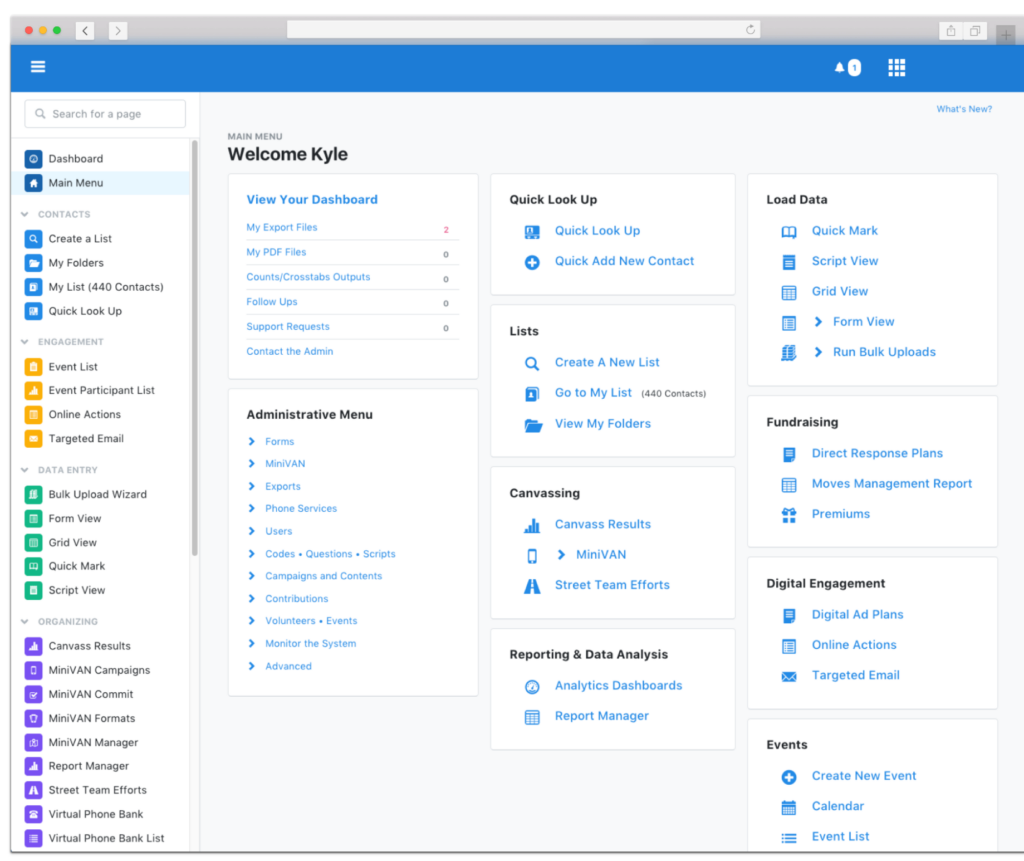
VoteBuilder is a voter database supported by NGP VAN and used by Democratic candidates, committees, and organizing teams to manage voter contact work.
Campaigns use VoteBuilder to:
- Build voter lists.
- View voter profiles.
- Track voter contact history.
- Store survey responses.
- Record supporter IDs.
- Manage volunteer and campaign data.
- Segment voters for canvassing, phone banking, texting, mail, and GOTV.
VoteBuilder records may include:
- Voting history
- Demographic data
- Contact information
- Likely party affiliation
- Survey responses
- Activist codes
- Contact history
- Polling location
- Early vote or absentee status, where available
- VAN ID
That data is useful because it lets campaigns call the right people for the right purpose.
For example, you might build a list of:
- Strong supporters for GOTV calls.
- Unknown likely party voters for persuasion.
- Inactive registered voters for turnout.
- Voters who said yes to a survey question.
- Voters who have not been contacted recently.
- Voters in a specific district, precinct, city, or ZIP code.
The better your VoteBuilder list is, the better your CallHub phone bank will be.
VoteBuilder, OpenVPB, and CallHub: what is the difference?
If you already use VoteBuilder, you may also know OpenVPB, or Open Virtual Phone Bank. OpenVPB is the native virtual phone banking option many campaigns use with VAN.
OpenVPB can work well for simple volunteer calling. But campaigns often look for more calling control, dialer flexibility, reporting, and multi-channel follow-up.
Here is the practical difference.
| Tool | Best for | Limits to consider |
| VoteBuilder | Building and managing voter lists, profiles, survey data, and campaign contact history | It is the voter database, not always the best place to run high-volume dialing |
| OpenVPB | Simple volunteer phone banking from VAN lists | Usually more manual, with fewer dialer and automation options |
| CallHub | Running phone banking campaigns using VoteBuilder lists, scripts, dialers, texting, and reporting | Needs integration setup and correct VAN permissions |
Use OpenVPB when your campaign needs a simple manual calling setup and volunteers are comfortable working inside the VAN environment.
Use CallHub when your campaign needs:
- Faster calling.
- Dialer options.
- Branching scripts.
- Call outcome logging.
- Follow-up texts.
- Distributed phone banking.
- Live reporting.
- Volunteer access outside the core data team.
- A cleaner phone banking workflow for large lists.
The strongest setup for many campaigns is not VoteBuilder or CallHub. It is VoteBuilder plus CallHub.
How to use CallHub with VoteBuilder
The process has two parts.
First, you prepare your voter list in VoteBuilder. Then, you connect VoteBuilder to CallHub and create your calling campaign.
Here is the high-level workflow.
| Step | Where it happens | What you do |
| 1 | VoteBuilder | Log in with ActionID |
| 2 | VoteBuilder | Access My Voters or My Campaign |
| 3 | VoteBuilder | Build and save your calling list |
| 4 | CallHub | Connect NGP VAN / VoteBuilder |
| 5 | CallHub | Import the saved voter list |
| 6 | CallHub | Map fields |
| 7 | CallHub | Create the calling campaign |
| 8 | CallHub | Add script, dialer, agents, and schedule |
| 9 | CallHub | Run calls and record outcomes |
| 10 | VoteBuilder | Sync and review updated data |
The steps below follow the existing VoteBuilder setup flow and add the CallHub integration layer.
Step 1: Log in with ActionID
To access VoteBuilder, you need an ActionID or an account name.
If your campaign already uses NGP VAN, your admin or data lead should give you the correct login access. Make sure your account has the permissions needed to view the voter lists you plan to call.
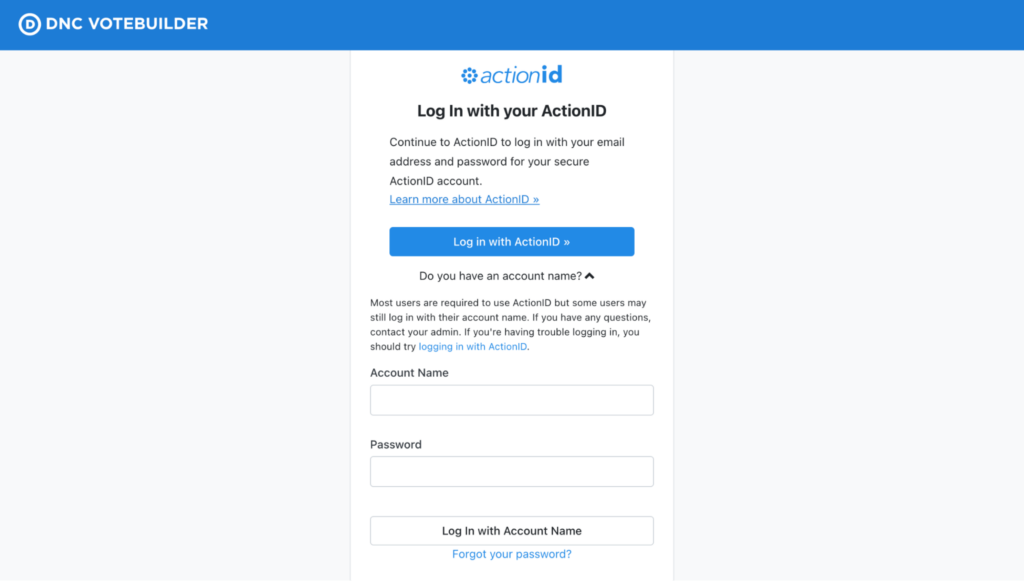
Source: VoteBuilder
Before moving further, confirm:
- You can log in successfully.
- You can access the correct committee or campaign.
- You can see the My Voters or My Campaign tab.
- You can create or access saved lists.
- You know who on your team can approve API or integration access.
This last point matters because the CallHub integration depends on the right VAN permissions.
Step 2: Access your voter list
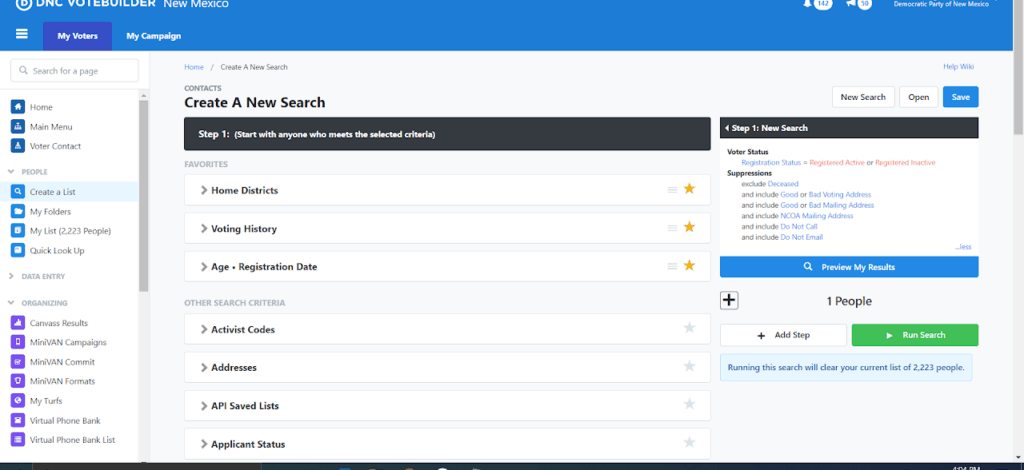
Source: VoteBuilder
Once you log in to VoteBuilder, you will usually work inside one of two areas.
My Voters
My Voters is the main voter file area. It includes registered voters in your district or campaign universe and is used for voter contact, canvassing, phone banking, voter ID, and GOTV.
Use My Voters when you are calling voters.
My Campaign
My Campaign is used for campaign-specific people, such as volunteers, supporters, activists, or other contacts your campaign has collected.
Use My Campaign when you are calling volunteers, donors, or campaign contacts rather than general voters.
Choosing the right mode matters later when you connect VoteBuilder to CallHub. If you are importing voter lists, use My Voter mode.
Step 3: Understand voter records
Every voter in VoteBuilder has a voter profile. The available fields may vary by state, committee, and access level, but voter records commonly include categories such as:
| Field | Why it matters for phone banking |
| VAN ID | Unique identifier for matching records |
| Contact information | Phone number, email, and address fields used for outreach |
| Voting history | Helps decide whether the voter belongs in GOTV, persuasion, or reactivation lists |
| Contact history | Shows past calls, canvasses, texts, and other touches |
| Survey responses | Shows past voter ID answers, issue preferences, and support levels |
| Activist codes | Helps identify volunteers, supporters, donors, or issue-based segments |
| Polling location | Useful for GOTV calls and Election Day reminders |
| Early voting or absentee status | Useful for ballot chase and GOTV segmentation |
| Household information | Helps avoid duplicate or confusing outreach |
For phone banking, the most important fields are usually phone number, support level, contact history, survey responses, polling information, and early vote or absentee status.
Do not import every field just because it exists. Import the fields volunteers need during the call and the fields CallHub needs to write outcomes back correctly.
Step 4: Create your calling list in VoteBuilder
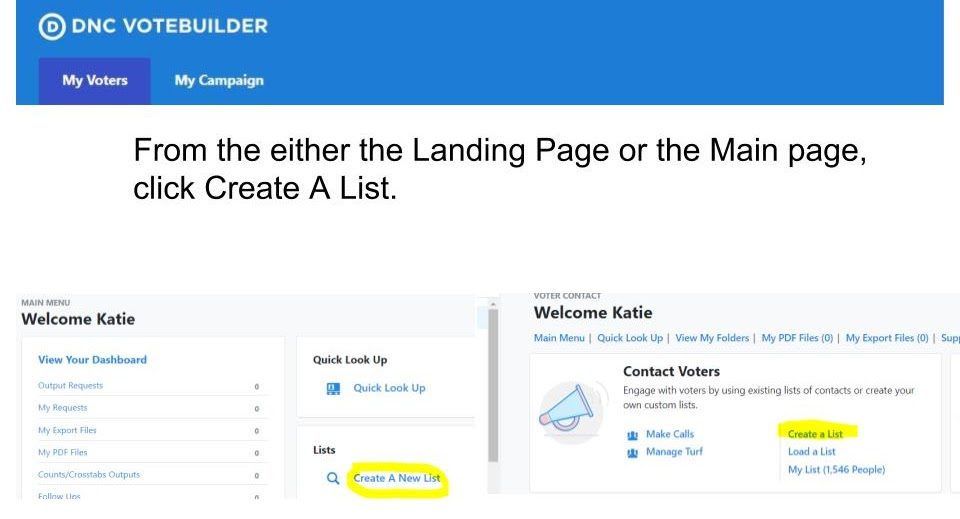
Source: VoteBuilder
Before you connect the campaign to CallHub, build the list you actually want to call.
In VoteBuilder, create a new search or list under My Voters. Then narrow the list using filters such as:
- District
- Precinct
- City
- ZIP code
- Likely party
- Vote history
- Survey response
- Contact history
- Canvass status
- Early vote status
- Absentee or mail ballot status
- Support level
- Activist code
For example, you can create lists for:
- Unknown likely party voters for persuasion.
- Strong supporters for GOTV.
- Inactive registered voters for turnout.
- Voters who said yes to your candidate in a survey.
- Voters who requested a mail ballot but have not returned it.
- Voters who have not yet been contacted by phone.
- Voters who were recently canvassed and need call follow-up.
When the list is ready, save it.
You can save a list as a fixed list or a dynamic list. A fixed list stays the same unless you update it. A dynamic list changes when the underlying voter data changes.
Use a fixed list when you want tight control over one phone banking shift. Use a dynamic list when you want the campaign list to keep reflecting new data.
Before importing into CallHub, check that the list includes the phone number and any fields you want volunteers to see during calls, such as:
- First name
- Last name
- Phone number
- Address or precinct
- Polling place
- Vote method
- Support level
- Survey response
- Issue tag
- Notes
- VAN ID
Phonebank with VoteBuilder integration with CallHub
To integrate VoteBuilder with CallHub, you need your VAN API key and the right permissions.
If you do not have the API key, ask the person who manages your NGP VAN access. You can also use CallHub’s support documentation for the VAN integration setup.
The basic setup is:
- Go to the Integrations tab in your CallHub dashboard.
- Click Connect under NGP VAN.
- Choose the correct mode, usually My Voter for voter lists.
- Enter the VAN API key.
- Confirm that the key has permission to import data from NGP VAN to CallHub.
- Import the saved VoteBuilder list into CallHub.
- Map the VoteBuilder fields to CallHub fields.
- Confirm which fields can sync back.
Some VoteBuilder fields may be read-only. That means you can import them into CallHub for context, but CallHub cannot update those fields in VoteBuilder.
Examples of read-only fields may include:
- Congressional District
- State House
- State Senate
- Polling Location
- Polling Address
- Polling City
The sync is most useful for campaign outcomes, survey responses, tags, notes, and call dispositions. Confirm the exact field behavior with your CallHub setup and VAN permissions before launching a live campaign.
What data syncs between CallHub and VoteBuilder?
Data sync is the reason the integration matters.
Without a sync, volunteers may call through a list and record outcomes in a separate system that the data team has to reconcile later. That creates delays and errors.
With CallHub and VoteBuilder connected, calling outcomes can update the voter record and inform the next campaign action.
| CallHub action | Why it matters in VoteBuilder |
| Supporter marked | Moves voter into GOTV or volunteer follow-up |
| Undecided marked | Adds voter to persuasion universe |
| Wrong number marked | Helps clean contact data |
| Do-not-call request marked | Helps suppress unwanted future calls |
| Survey answer collected | Updates voter issue or support data |
| Note added | Gives future callers context |
| Callback requested | Creates a follow-up path |
| Text follow-up sent | Keeps channel history connected |
Before launch, test the sync with a small list. Make a sample call, record a test disposition, and confirm where that answer appears in VoteBuilder.
Do not wait until the end of a 10,000-person phone bank to learn that a field was not mapped correctly.
Create your calling campaign using CallHub
Once your VoteBuilder list is imported into CallHub, you can create the calling campaign.
The current article already walks through this setup. The optimized version keeps that process and adds the decision logic behind each step.
Step 1: Rent or choose a caller ID number
From the Number tab in CallHub, rent a number for the campaign or choose an existing number.
This is the caller ID voters will see when they receive your call.
Use a number that fits the campaign geography where possible. A local or familiar caller ID may help pickup, but campaigns should also pay attention to caller ID reputation, spam labeling, and compliance.
Step 2: Confirm your imported VoteBuilder list
Your VoteBuilder list becomes a contact list in CallHub.
Before launching, review a small sample of contacts and confirm:
- Names appear correctly.
- Phone numbers are present.
- Important voter fields imported.
- VAN IDs or matching fields are included.
- Survey fields and notes are visible where needed.
- The list does not include people who should be suppressed.
This is the point where you catch field mapping problems before volunteers start calling.
Step 3: Create a Call Center campaign
From your CallHub dashboard, create a Call Center campaign.
Name the campaign clearly. Use a format that helps your team understand the audience and purpose.
Example:
- “GOTV | CD-03 | Strong Supporters | Final Weekend”
- “Persuasion | Ward 4 | Unknown Likely Party”
- “Ballot Chase | Mail Ballot Requested | Week 2”
- “Volunteer Recruitment | Prior Donors | June Shift Ask”
Campaign naming matters when you later review analytics or compare performance.
Step 4: Add your phone banking script
Add the script volunteers will see during the call.
CallHub supports both linear scripts and branching scripts.
Use a linear script when the call path is simple.
Examples:
- GOTV reminders for confirmed supporters
- Polling place confirmation
- Event reminders
- Ballot return reminders
Use a branching script when the voter’s answer changes what the volunteer should ask next.
Examples:
- Voter ID
- Persuasion
- Volunteer recruitment
- Donor follow-up
- Undecided voter callbacks
- Issue surveys
A branching script can work like this:
| Voter response | Next step |
| Strong supporter | Ask vote plan or volunteer interest |
| Lean supporter | Offer issue follow-up, then ask vote plan |
| Undecided | Ask top issue and offer follow-up |
| Opposed | Thank and close |
| Needs help | Route to staff or voter support |
| Do not call | Mark suppression and close |
The script should tell volunteers what to say and what to record.
Step 5: Choose the right dialer
The dialer should match the goal of the campaign.
Do not choose the fastest dialer by default. Choose the dialer that fits the list, consent rules, volunteer experience, and call type.
| Dialer | Use it for | Be careful when |
| Preview Dialer | Persuasion, donor calls, candidate callbacks, sensitive follow-up | You need high volume quickly |
| Power Dialer | Voter ID, volunteer recruitment, GOTV calls where volunteers need a moment between calls | Volunteers need deep research before each call |
| Predictive Dialer | Large GOTV or voter ID lists with trained callers and compliance review | Calling mobile numbers or running complex persuasion calls |
| Auto Dialer | High-volume awareness, reminders, or structured outreach | Calls require long conversations or manual review |
| Manual Dialing | Compliance-sensitive lists or campaigns requiring full caller control | Speed is the main priority |
For VoteBuilder lists with many mobile numbers, review compliance before using automated dialing. Manual or preview dialing may be safer depending on consent, call type, and jurisdiction.
Step 6: Add answering machine audio if needed
If your campaign wants to leave a standard message when voters do not answer, enable answering machine audio.
Use this for:
- Election reminders
- Event reminders
- Ballot return reminders
- Volunteer shift reminders
- Short campaign updates
Only use approved voicemail language. Do not let each volunteer improvise a different message unless the campaign explicitly allows it.
Step 7: Set up inbound calling
Inbound calling lets voters call back and reach an agent.
This is useful because some voters may not answer the first call, but they may call the number back later.
Set up:
- A message for when agents are unavailable.
- Hold music or a short audio message.
- Callback instructions.
- A process for logging inbound call outcomes.
Inbound calls should also sync back into the campaign record where possible.
Step 8: Assign agents and permissions
Assign volunteers or agents to the campaign.
Then decide whether to enable:
- Call recording, if allowed and compliant
- Add notes
- Survey questions
- Call dispositions
- Text follow-up
- Agent-side scripts
- Live monitoring
If volunteers are new, keep the interface simple. Show only the fields and script paths they need.
Step 9: Use AI Smart Insights and reporting
CallHub’s AI Smart Insights can help campaign managers review campaign data and identify patterns across calls.
Use reporting to answer questions like:
- Which lists have the strongest answer rates?
- Which volunteers need coaching?
- Which scripts create better dispositions?
- Which voters need follow-up?
- Which call times perform best?
- Which issue tags appear most often?
- Which precincts still need calls?
- Which contacts should move to GOTV, persuasion, or suppression?
The goal is not just to see how many calls were made. The goal is to improve the next round of calls.
Step 10: Schedule your campaign
Schedule your campaign by the voter’s timezone when possible.
This is especially important for campaigns calling across state lines or across multiple regions.
Before launch, confirm:
- Start date and end date
- Calling hours
- Voter timezone settings
- Volunteer shifts
- Compliance review
- Suppression lists
- Follow-up process
CallHub can help schedule calls in voter timezones when the right voter location data is available.
Compliance basics for VoteBuilder phone banking
This section is not legal advice. Use it as a campaign planning checklist and confirm details with counsel, your party, your committee, or compliance lead.
Political calls and texts may be subject to different rules depending on the method, phone number type, technology, state law, and whether the call is live, prerecorded, manually dialed, or autodialed.
Before using VoteBuilder lists for phone banking, check:
- Are you calling landlines, mobile numbers, or both?
- Are calls manually dialed or made with a dialer?
- Are any prerecorded messages or voicemail drops used?
- Does the list include consent where required?
- Are internal do-not-call requests suppressed?
- Does your state add stricter rules than federal law?
- Are calls scheduled inside permitted local calling hours?
- Is caller ID clear and accurate?
- Are text follow-ups compliant with 10DLC, opt-out, and sender identity rules?
Start with the FCC’s rules for political campaign calls and texts and FCC guidance on robocalls and texts.
When someone asks not to receive calls, mark that immediately. A do-not-call request should not depend on whether the voter supports you.
Reach out through texting with CallHub
CallHub’s texting from call center feature lets agents send a text during or after a call.
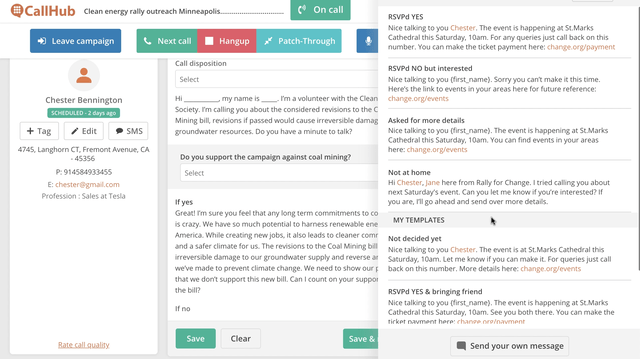
This is useful when:
- The voter does not answer.
- The voter asks for a voting link.
- The voter wants a donation link.
- The voter needs a polling place link.
- The voter asks for event details.
- The voter wants to volunteer later.
- The voter needs confirmation after a call.
A text follow-up should be short and tied to the call.
Examples:
No-answer follow-up
“Hi [Name], this is [Volunteer] with [Campaign]. We just tried calling about [Election/Event]. You can find more information here: [Link].”
Polling place follow-up
“Hi [Name], here is the official voting information we discussed: [Link]. Thanks for making a plan to vote.”
Volunteer follow-up
“Thanks for your interest in volunteering. Here is the shift signup link: [Link].”
Donation follow-up
“Thank you for considering a contribution. Here is the secure donation link: [Link].”
The existing article cites an Australian study where pre-texting was associated with a higher response rate, 12.4% with a pre-text vs. 7.7% without a pre-text. Use that as a reminder that channel sequencing matters, but do not assume the same lift for every campaign list.
If your campaign uses texting, make sure opt-outs are honored and that messages follow applicable carrier, 10DLC, and legal requirements.
Track your campaign’s analytics
A VoteBuilder and CallHub phone bank should not be judged only by the total number of dials.
Call volume matters, but it does not tell you whether the campaign learned anything useful or moved voters to the next step.
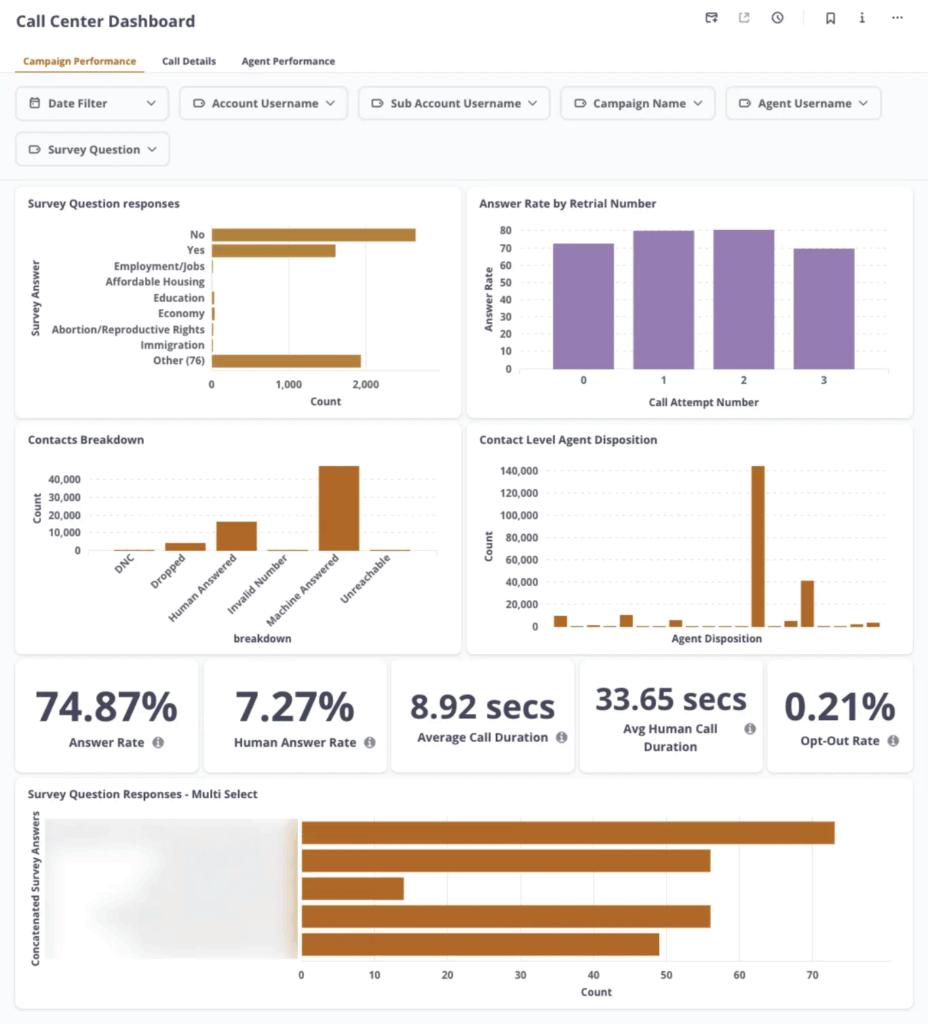
Track these metrics:
| Metric | What it tells you |
| Human answer rate | How many calls reached real voters |
| Contact rate | How much of the list was actually reached |
| Average call duration | Whether conversations are too short, too long, or on target |
| Agent dispositions | How callers are classifying outcomes |
| Supporter IDs | How many supporters were identified |
| Undecided voters | Who should move to persuasion |
| Wrong numbers | How much list cleaning is needed |
| Opt-out rate | Whether the campaign is creating contact fatigue |
| Best call windows | Which days and times perform best |
| Follow-up requests | Who needs a text, email, callback, or ride support |
After each phone bank, update the next campaign action.
For example:
- Strong supporters move to GOTV.
- Undecided voters move to persuasion.
- Wrong numbers are cleaned.
- Do-not-call requests are suppressed.
- Volunteers are routed to shift recruitment.
- Donor prospects get fundraising follow-up.
- Mail ballot voters get ballot chase reminders.
The sync back to VoteBuilder is what keeps this work from becoming another disconnected spreadsheet.
Troubleshooting common VoteBuilder and CallHub issues
Most integration problems come from permissions, field mapping, list setup, or sync expectations.
Use this troubleshooting table before contacting support.
| Problem | Likely cause | What to check |
| Saved VoteBuilder list does not appear in CallHub | Permission issue or wrong mode selected | Confirm My Voter vs My Campaign mode and VAN permissions |
| API key does not connect | Wrong key, expired key, or missing access | Ask VAN admin to confirm API key and integration permissions |
| Fields are missing after import | Field not selected or not mapped | Review field mapping during import |
| Some fields import but do not sync back | Field may be read-only | Confirm which fields are read-only before launch |
| Survey responses are not appearing correctly | Survey questions not mapped correctly | Test with one record before launching |
| Volunteers cannot see useful voter context | Important fields not included in import | Add relevant fields such as support level, issue, polling place, or notes |
| Duplicate contacts appear | List overlap or multiple saved list imports | Deduplicate before launch and confirm list rules |
| Call outcomes do not update VoteBuilder | Sync setting or permission issue | Check integration settings and test with a small sample |
| Text follow-up not available | Feature not enabled or message templates missing | Add approved templates and check campaign settings |
Always test with a small list before running a full campaign.
A five-contact test can save hours of cleanup later.
When should campaigns use CallHub with VoteBuilder?
Use CallHub with VoteBuilder when the campaign needs more than a basic manual phone bank.
This setup is especially useful for:
- Voter ID campaigns
- GOTV campaigns
- Ballot chase campaigns
- Persuasion follow-up
- Volunteer recruitment
- Donor follow-up
- Event turnout
- Distributed phone banking
- Multi-state or multi-timezone campaigns
- Campaigns with many remote volunteers
Use a simpler setup when the list is small, the campaign is low-volume, and volunteers are already comfortable working directly inside VAN.
The decision is practical. If your team is spending more time assigning lists, dialing numbers, recording outcomes, and cleaning data than talking to voters, it is time to connect VoteBuilder with a dedicated phone banking tool.
Why CallHub?
Campaigns using VoteBuilder already have a voter data system. What they need during a phone bank is a calling workflow that is fast, manageable, and connected back to the data.
CallHub helps by giving campaigns:
- Dialer options for different campaign types.
- Branching scripts for voter ID, persuasion, GOTV, and volunteer calls.
- Survey questions and dispositions during the call.
- Notes that help future follow-up.
- Text follow-up from the call workflow.
- Reporting for managers.
- Volunteer access for distributed teams.
- Integration with NGP VAN / VoteBuilder.
The practical advantage is simple: VoteBuilder stays the source of voter data, and CallHub becomes the outreach layer for calling and follow-up.
To see the integration details, visit CallHub’s NGP VAN integration. For a complete overview of how phone banking works, see the complete guide to political phone banking. To explore campaign calling features, see CallHub’s phone banking software.
FAQs on phonebank with VoteBuilder
What is VoteBuilder?
VoteBuilder is NGP VAN’s voter database used by Democratic campaigns and committees to manage voter records, contact history, survey responses, targeting, and organizing data.
Can you phonebank with VoteBuilder?
Yes. Campaigns can use VoteBuilder or OpenVPB for basic phone banking, or connect VoteBuilder to CallHub to run phone banking campaigns with dialers, scripts, survey questions, text follow-up, and reporting.
What is OpenVPB?
OpenVPB stands for Open Virtual Phone Bank. It is a VAN phone banking tool that lets volunteers call through assigned lists and record outcomes. It can work well for simple manual phone banks, but campaigns may use CallHub when they need more dialer options, texting, reporting, or workflow flexibility.
How is CallHub different from OpenVPB?
OpenVPB is useful for simple VAN-based volunteer calling. CallHub adds campaign phone banking features such as dialer options, branching scripts, text follow-up, analytics, volunteer assignment, and integration workflows that can sync results back into VoteBuilder.
Do I need a VAN API key to connect VoteBuilder with CallHub?
Yes. You need the correct VAN API key and permissions to connect VoteBuilder with CallHub and import saved lists. If you do not see your lists, check API permissions, My Voter vs My Campaign mode, and saved list access.
What VoteBuilder data can I import into CallHub?
You can import contact fields and voter context such as name, phone number, address, polling information, survey responses, support level, notes, and other mapped fields, depending on your VoteBuilder permissions and field availability.
What data syncs back from CallHub to VoteBuilder?
Call outcomes, survey responses, tags, notes, and dispositions may sync back depending on your field mapping and permissions. Some fields are read-only and can be imported for context but not updated from CallHub.
Which dialer should I use for VoteBuilder phone banking?
Use preview or manual dialing for high-context persuasion calls. Use power dialing for structured voter ID or GOTV calls. Use predictive dialing only after compliance review and when the list, consent, and campaign type allow it.
Can I text voters after a CallHub phone bank?
Yes. CallHub can support text follow-up from call center workflows, which is useful for no-answer follow-up, polling place links, donation links, event details, and volunteer signup links. Make sure your texting program follows consent, opt-out, and registration requirements.
How do I troubleshoot VoteBuilder lists not appearing in CallHub?
Check whether you connected with the correct My Voter or My Campaign mode, whether the list is saved properly in VoteBuilder, whether your API key has import permissions, and whether the list is accessible to the VAN account connected to CallHub.
Is VoteBuilder the same as NGP VAN?
VoteBuilder is part of the NGP VAN ecosystem and is commonly used as the voter database interface for Democratic campaigns and committees. NGP VAN also includes broader campaign tools and data infrastructure.
What should I do before launching a full VoteBuilder phone bank in CallHub?
Run a small test. Import a short saved list, map fields, make a test call, record a disposition, add a note, and confirm the data syncs back into VoteBuilder as expected.